
bouquet Introduction
In the 1990s I started dabbling with a new kind of system analysis. Object Oriented system Analysis. I quickly became familiar with all of the great OOA/D tools. The one that stood out for me was Rational Rose. I dove right in and over time became quiet proficient in using the tool. I quickly started writing scripts to to make my life easier and automate repeated tasks. This was the birth of a project named bouquet. Using the UML 4+1 paradigm to model architectures. Bouquet focused auto-generating artifacts that are common in the 4+1 paradigm.
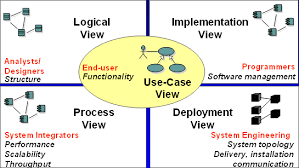
Move forward 20 years. I am still using UML to design and architect systems, but I also use rapid prototyping technologies like sails, rails and grails. Most recently I am focusing on nodeJS/sails development. I dusted off my old bouquet specs and started working on resurrecting bouquet with the latest technologies.
These are the technologies that I am leveraging this time.
- PlantUML - Textual way of describing UML diagrams <filename>.puml
- SailsJS - MVC framework for NodeJS development
- Commander - npm module for command line programming for NodeJS
- rst - ReStructureText language for documenting the Architecture. <filename>.rst
The tools by themselves are very useful. Bringing all the tools together is where I found the most benefit.
PlantUML
PlantUML is a component that lets you quickly write several UML diagrams using Text instead of a drawing tool. It is great for many but not all of the UML diagrams. I have found that it covers everything that I typically need to do for Architectures of systems. UseCase, Component, Class, Deployment, Scenarios, and Activity Diagrams.
One of the benefits of using PlantUML that the text files that your create .puml can be checked in to GitHub. You can also generate image files (png) from the text files (puml) and check in the image files as well. I do this so my design documents in GitHub (Markdown language is used) can reference the images that have been generated. Generating the image (png) files is as easy as typing in a command line.
# java -f design/plantuml.jar myDiagram.puml
Because I am using NodeJS. I can use a npm script command to actually generate all of the my images. Basically I put another target in my package.json file in the root directory that searches all of my design directories and generates the png files.
"scripts": {
...
"design": "java -jar docs/plantuml.jar docs/*.puml docs/**/*.puml",
...
}
Now you can generate png files for all of your design diagrams, just type.
# npm run-script design
To find out more about PlantUML click here <http://www.plantuml.com> You can download the latest jar file for quick image generation here <http://www.plantuml.com/downloads>. There is also a Plugin for PlantUML for Intellij <http://getlink> and several other IDEs.
SailsJS
SailsJS is a MVC convention over configuration framework for NodeJS applications. This uses a common pattern that can be found in several programming languages today. Examples include Ruby o Rails, and Groovy on Grails.
Commander
Commander is a nodejs module for command-line processing. I use this to develop command line interfaces for the systems that I architect. This gives me a quick and dirty way of providing a command line interface with very little lifting.
bouquet
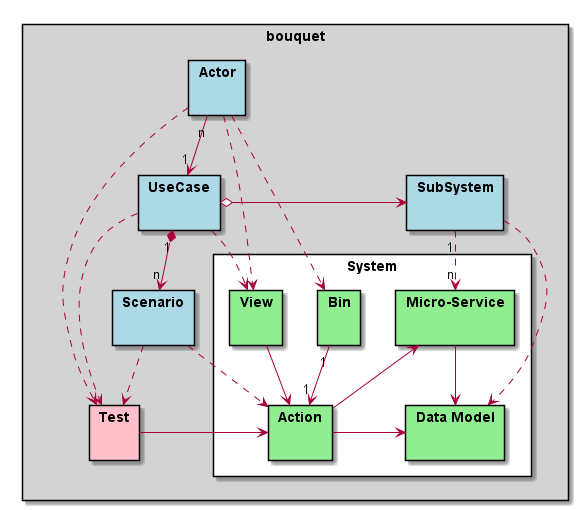
Using the concept of convention over configurability of SailsJS, I extended the same concepts that already exist in SailsJS and created a docs and bin directory in the project root directory. This gives me a place to put the design of the architecture as well as the CLI (Command Line interface) of the system being architected. This is important because most of the architectures I am working have a Web, REST and CLI (Command Line Interface). Everywhere I could auto-generate UML diagrams, code, test scripts I did. I followed the following diagram as a guide to how the different types of elements where connected together.
Directory Hierarchy
After a SailsJS project is created a standard directory hierarchy contains several directories and files. I added two additional directories to the top level (bin, design, and test). Next, I add corresponding subdirectories in the design directory as shown below.
api - Standard SailsJS directory
- controllers - Standard SailsJS Controllers for the project.
- models - Standard SailsJS Model for the project.
assets - Standard SailsJS Directory
bin - Contains commander binaries
config - Stanard SailsJS Directory
docs - Contains Architecture and Design of the system
Actors - Actors of the system
- index.rst - index file for all of the Actors.
- < Actor Name > - Directory for each Actor of the system
- Actor-< Actor Name >.rst - Readme for the actor.
- Activity.puml - Activity diagram for the Actor.
- UseCases.puml - Use Case diagram for the Actor.
- Workflow.puml - Workflow diagram for the Actor.
UseCases - Use Cases of the system
- index.rst - index file for all of the Use Cases.
- UseCases.puml - PlantUML file for all of the Use Cases and Actors
- < UseCase Name > - Directory for each Use Case of the system
- Activities.puml - Activity diagram of the scenarios for the Use Case.
- UseCase-<UseCase Name>.rst - Readme for the Use Case.
- Scenario-<Scenario Name>.rst - Readme for the Scenario of the Use Case.
- <Scenario Name>.puml - User Interaction of the Scenario with the System.
- <Scenario Name>Web.puml - User Interface of the Sceniaro with the System.
Solution - System Components
- Solution.rst - ReadMe for all of the sub-systems
- Deployment.puml - Deployment Diagram for the System.
- Logical.puml - Logical Diagram for the System.
- Physical.puml - Physical layout Diagram for the System.
- Process.puml - Process Diagram for the System.
- Process.puml - Process Diagram for the System.
- Services - Documentation for micro-Services.
- <Service Name> - Directory of the Service Name
- Deployment.puml - Deployment diagram for the Service.
- Logical.puml - Logical diagram for the Service.
- Physical.puml - Physical diagram for the Service.
- Process.puml - Process diagram for the Service.
- UseCases.puml - Use Case diagram for the Service.
- UserInteraction.puml - User Interaction diagram for the Service.
- <Service Name> - Directory of the Service Name
- <Sub System Name> - Directory for each sub system.
- SubSystem-<Sub System Name>.rst - Description of the Sub-System
- Deployment.puml - Deployment diagram for the SubSystem.
- Logical.puml - Logical diagram for the SubSystem.
- Physical.puml - Physical Layout diagram for the SubSystem.
- Process.puml - Process diagram for the SubSystem.
- UseCases.puml - Use Case diagram for the SubSystem.
- UserInteraction.puml - User Interaction diagram for the SubSystem.
Home.rst - Top ReadMe for the Architecture and Design
index.rst - Top level index file to include everything in the book.
Architecture.puml - Top level architecture plantUML diagram
conf.py - Sphynix Config file for pdf and html generation.
plantuml.jar - plantUML jar file used to generate png files.
tasks - Standard SailsJS Directory
test - Contains test for the system.
- bin - Test the CLI
- Actors - Test the Actor interactions One Test Suite per Actor with each use case
- UseCases - Test the Scenarios as described. One Test Suite per Scenario with tests for each different path through the scenario
- System - Test of each subsystem. One Test Suite for each SubSystem, a test for each of the interface calls.
views - Stand SailsJS Directory
Binary setup
There are several different kinds of binary files that are used in the bouquet pattern. 1. Top Level Command script - “projectName” 2. Actor Command Script - “projectName-actorName” 3. Subsystem Command Script - “projectName-subsystemName” 4. Command Script - “projectName-actorName-command”, “projectName-subsystemName-command”, or “projectName-command”
The goal here is that we have a consistent command line interface. For example in the project named caade the following are some commands
# caade init // High level scenario
# caade stack up // Subsystem Command
# caade dev ps // Actor Command
Top Level Command Script
There should be one system command that contains all of the commands for the system using the commander package.
- The name of the file should be “projectName” in the bin directory.
- The for each actor there should be a command for the actor. This will give a command line interface for each actor
- There should be a command for each subsystem as well. This will give the ability for each subsystem to have a CLI.
- There should be a command for each of the top level scenarios for the system.
The following is an example of this top level command file
In this case “caade”
#!/usr/bin/env node
var program = require('commander');
program
  .version("0.2.0")
  // Actors
  .command('app <command> <applicationName>', 'Work with applications')
  .command('stack <command> <stackName>', 'Work with applications')
  .command('adm <command> <stackName>', 'Work with applications')
  // SubSystems
  .command('policy <command> <policyName>', 'Work with Policies')
  .command('cloud <command> <cloudName>', 'Work with Clouds')
  .command('environment <command> <EnvironmentName>', 'Work with applications')
  .command('service <command> <EnvironmentName>', 'Work with servioes')
  .command('user <command> <UserName>', 'Work with Users')
  // Scenarios
  .command('init', 'initalize Caade on your machine')
  .command('up [service-name]', 'Launch an application in a specific environment')
  .command('update [service-name]', 'Update web service with new code')
  .command('run <command>', 'Run a command in specified environment')
  .command('ps <command>', 'List processes for the application')
  .command('kill <serviceName>', 'Kill specific service for the application')
  .command('logs [serviceName]', 'Get logs of the application')
  .command('deploy', 'Deploy an application')
  .parse(process.argv);
Actor Command Script
This is very much like the Top level command script but limits the commands to the actor The file is named “projectName-actorName” a simple example follows.
In this case “caade-app”
#!/usr/bin/env node
var program = require('commander');
program
  .version("0.2.0")
  .command('create <application name>', 'Create an application')
  .command('get <application name>', 'Create an application')
  .command('ls', 'List my applications')
  .command('remove <application name>', 'Remove my application')
  .command('show <application name>', 'show details about my application')
  .parse(process.argv);
The Controller for this might look something like this AppController.js
module.exports = {
  create: function (req, res) {
    var name = "";  // Default
    var stackName = "";  // Default
    if (req.query.name) {
      name = req.query.name;
    }
    else {
      // Return Error "No Application Name specified"
      return res.json({error: "No Application Name specified!"})
    }
    if (req.query.stack) {
      stackName = req.query.stack;
    }
    else {
      // Return error with "No Application Stack specified"
      return res.json({error: "No Application Stack specified!"})
    }
    return Application.find({name: name})
      .then(function (app) {
        res.json({application: app});
      });
  },
  get: function (req, res) { ... },
  delete: function (req, res) { ... },
  list: function (req, res) { ... },
  show: function (req, res) { ... },
  ps: function (req, res) { ... },
  up: function (req, res) { ... },
  kill: function (req, res) { ... }
};
Subsytem Command Script
This is very much like the Top level command script but limits the commands to the subsystem The file is named “projectName-subsystemName” a simple example follows.
In this case “caade-cloud”
#!/usr/bin/env node
var program = require('commander');
program
  .version("0.2.0")
  .command('create <cloudName>', 'Attach a Cloud')
  .command('ls', 'List the Clouds attached')
  .command('remove <cloudName>', 'Remove a Cloud')
  .command('show <cloudName>', 'Show details about a Cloud')
  .parse(process.argv);
Command Script
Command scripts are where everything really happens. The previous scripts just setup for accessing the command scripts. The naming convention of the command scripts follows the actor and subsystem nomenclature “projectName-actorName-command”, “projectName-subsystemName-command”, or “projectName-command”.
The trick of the command is to connect to the rest interface of the system. This should coorespond to the controller with a similar name. For example if you have actor command script then there should be a cooresponding controller for the actor. This way the REST and CLI APIs are consistent.
Here is an example of a project (caade) that has three actors (dev, ops, admin) and two subsystems (stack, policy). The following commands would be available
```
# caade dev
# caade ops
# caade admin
# caade stack
# caade policy
The top level command file “bin/caade” will look something like this
#!/usr/bin/env node
var program =  require('commander');
program
  .version("0.1.0")
  .command('dev <command>', 'Developer Commands')
  .command('ops <command>', 'Operators Commands')
  .command('admin <command>', 'Admin Commands')
  .command('stack <command>', 'Stack Manager Commands')
  .command('policy <command>', 'Policy Manager Commands')
  .parse(process.argv);
Each subsequent actor or subsystem commands would have a file that would contain something similar to the following
#!/usr/bin/env node
var program =  require('commander');
program
  .version("0.1.0")
  .command('create <name>', 'Developer Create')
  .command('delete <name>', 'Developer Delete')
  .command('ls', 'List Developers')
  .parse(process.argv);
Now each one of the commands for the actor or subsystem will have its own file with the names as follows
# caade-dev-create
# caade-dev-delete
# caade-dev-ls
Each one of the command scripts will access the rest interface or process some things directory in the command shell. The following is an example of a simple Command Script that accesses the rest interface. In this case it shows information about a stack in the system
#!/usr/bin/env node
var program = require('commander');
var Client = require('node-rest-client').Client; // Needed to access the REST Interfacce.
var config = require('./system-config'); // Contains the URL to connect to for the REST Interface
var _ = require('lodash');
var client = new Client();
program
  .option('-v, --version <versionNumber>', 'Show an application stack with version')
  .parse(process.argv);
var name = program.args;
// Create the REST Command
var url = config.caadeUrl + "/stack/show?";
if(name) {
  url += "name=" + name[0];
}
if (program.version) {
  url += "&version=" + program.version;
}
// Call the REST Interface via HTTP Client.
client.get(url, function (data, response) {
  // parsed response body as js object
  if(data.error) {
    console.error(data.error);
  }
  else {
    console.log(data.stack);
    console.log("Name:" + data.stack.name + "\tVersion: " + data.stack.version);
  }
});
Another thing that I found useful was having the ability to include the ability to allow the user to add a file as an argument to the CLI. This is good for passing in yaml or json files that can be passed into the Controller. In this case I am passing in a yaml file.
#!/usr/bin/env node
var program = require('commander');
var Client = require('node-rest-client').Client; // Access the REST interface
var config = require('./caade-config');
var YAML = require('yamljs'); // Parse a YAML file
var client = new Client();
program
  .option('-f, --filename <filename>', 'Create an application stack from file')
  .option('-e, --env <environmentName>', 'Create an application stack for the environment')
  .parse(process.argv);
var name = program.args;
var url = config.caadeUrl + "/stack/create";
// Taking a YAMLfile and converting to JSON and then passing it into the REST interface.
var args = { headers: {"Content-Type": "application/json"}, data: {} }
if(name) {
  args.data.name = name[0];
}
var definition = {};
// Load the YAML file from the local drive and convert it to JSON.
if (program.filename) {
  args.data.definition = YAML.load(program.filename);
}
if (program.env) {
  args.data.env = program.env;
}
client.post(url, args, function (data, response) {
  // parsed response body as js object
  if(data.error) {
    console.error(data.error);
  }
  else {
    console.log("Stack " + data.stack.name + " has been created for environment " + program.env);
  }
});
Actions
I recently (Nov 2017) extended bouquet to handle the creation of Actions for Controllers. The concept behind this is to auto generate tests, command line interface and controllers for the actions created.
Pattern
- An action is created for a specific controller.
- And a cooresponding binary is created to access the action.
- Finally a test set of test cases is created for the action.
* api
  * controllers
    * <controller-name>
       * <action-name>.js
* bin
  * <controller-name>-<action-name>
* test
  * bin
    * <controller-name>-<action-name>.test.js
  * integration
    * <controller-name>-<action-name>.test.js
Usage
$ sails generate bouquet-Action <controller> <action>
Future
I know as I start using this I will add more generated artifacts to the system. So if you have any ideas please let me know. You can find more at the github project